- CSS 100%
| Filename | Latest commit message | Latest commit date |
|---|---|---|
| Fira | ||
| screenshots | ||
| next_stellar-dark.css | ||
| og_stellar-dark.css | ||
| README.md | ||

Stellar Dark Theme
Dark theme for Trilium Notes
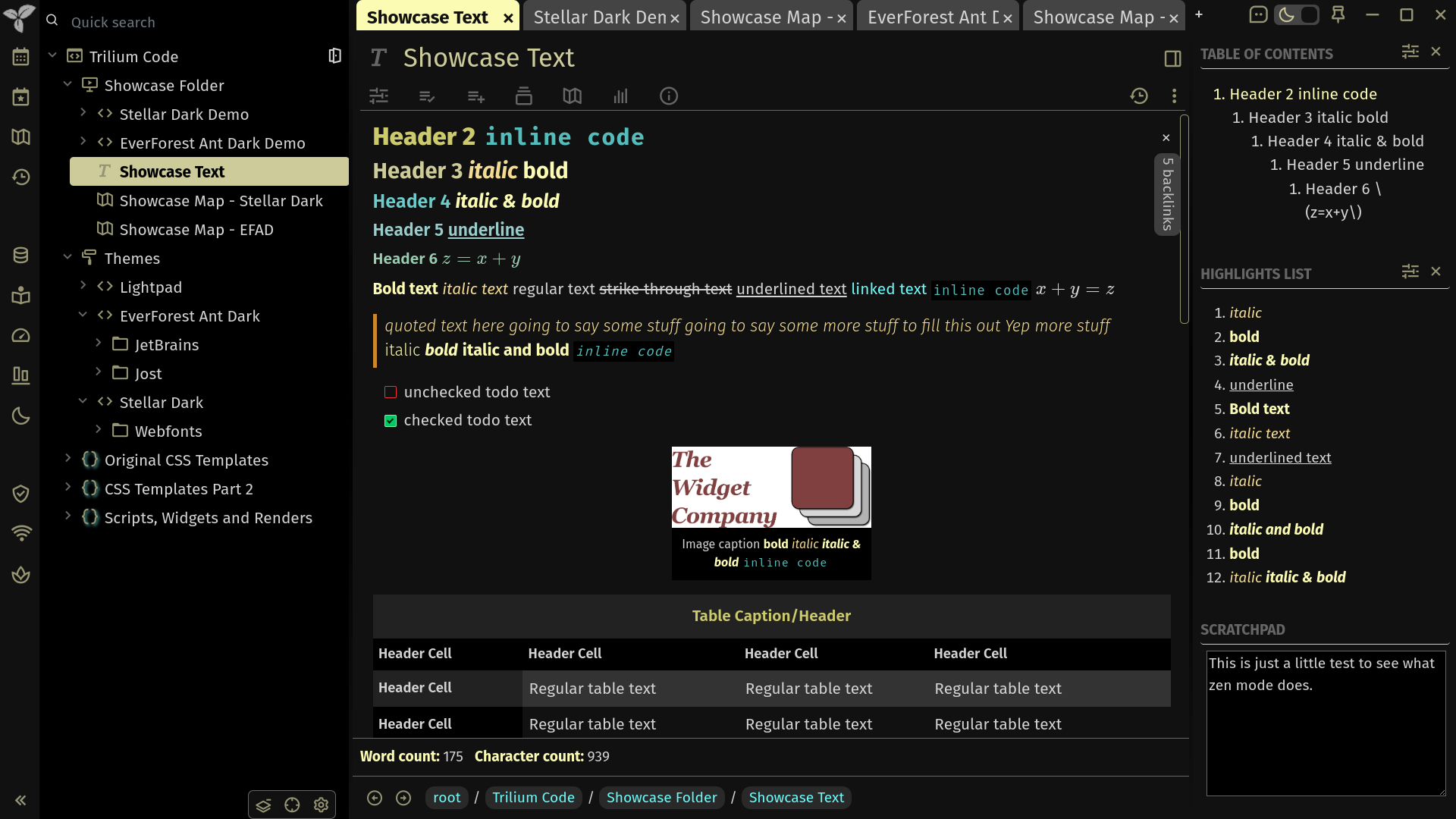
Features
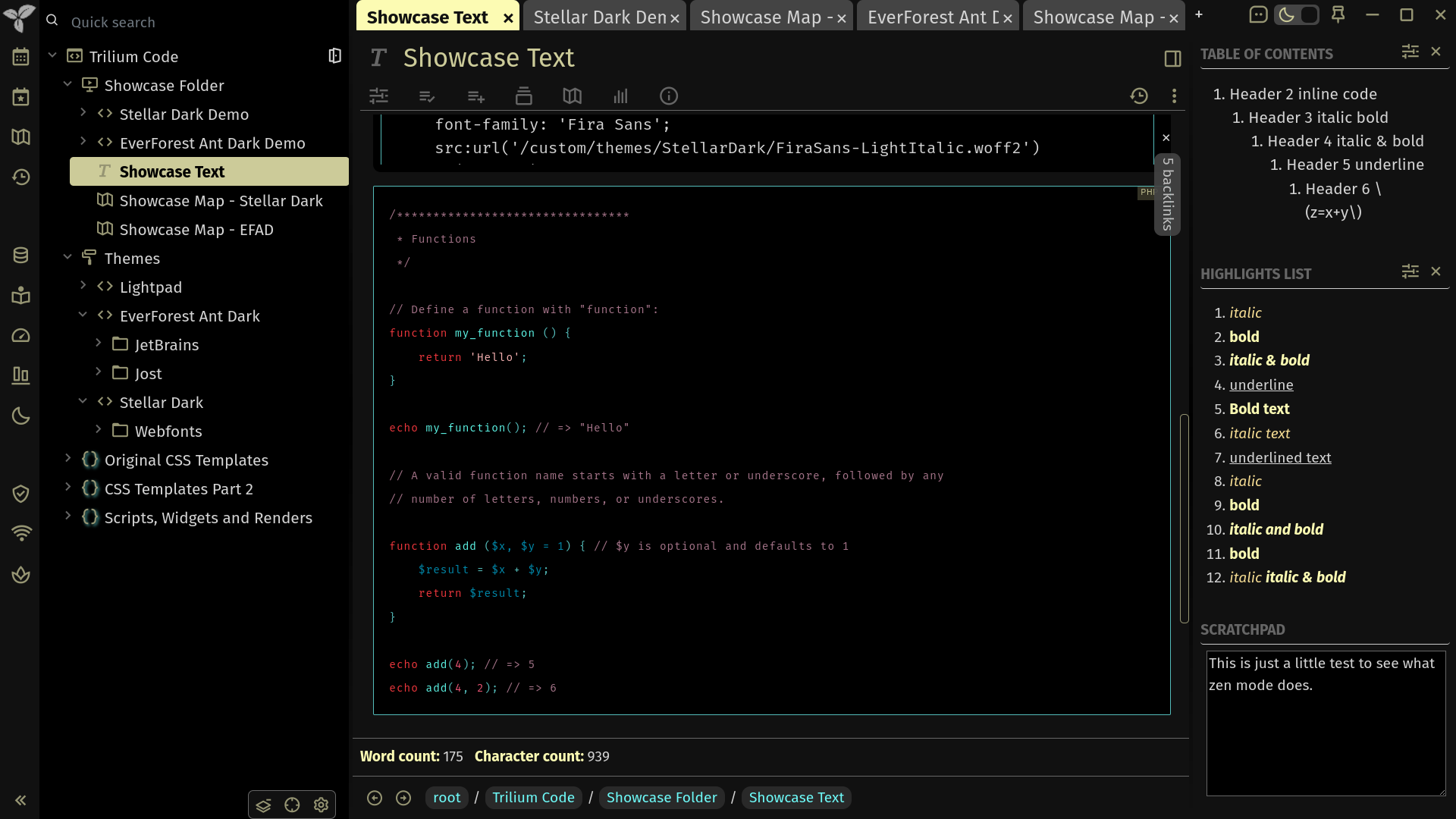
Native Styles
- Dark theme
- High contrast
- Scrolling tables with sticky headers on both axes
- Vertical floating buttons that have much less overlap with content of notes
- Custom fonts
- Bright colors
Enhanced Addon Styles
See 'Usage Instructions' for information on how to enable these.
- Zen Mode
- Matching syntax highlight in text notes
- Position shown in TOC
- And much more!
Usage Instructions
Installation
- Download the latest version of Trilium
- Download the latest release of Stellar Dark
- In your trilium instance right click a note you want to import the theme into
- Select "Import into note" in the context menu
- Uncheck "Safe import" and upload the zip file you just downloaded
- Click on the Trilium logo in the upper left corner and select Options -> Appearance
- Under "Theme", choose Stellar Dark
- Enjoy!
Enabling Addon Features
Zen Mode
- Create a 'JS frontend' code note
- Add the
#widgetattribute to 'Owned Attributes' (the button with three lines and a checkmark) - Add the following code (created by Nriver) to the note
api.addButtonToToolbar({ title: 'Zen mode', icon: 'spa', action: function() { $("body").toggleClass("zen-mode"); }, shortcut: 'alt+z' }); - Reload (
ctrl+rorF5) Trilium to enable the script
Usage
Press alt+z or the zen (spa) button in the launcher (left most panel) to enable/disable zen mode.
There are two types of zen mode available:
- Right panel enabled
- Right panel disabled
Right panel is enabled by default. If you would like to disable it, you can either add the following code in a new CSS note or uncomment it in the Stellar Dark theme as seen in the video below.
/*hide right pane*/
.zen-mode #right-pane {
    display: none !important;
}
https://github.com/user-attachments/assets/189e35e4-2ba0-4e93-b6cb-1dd25e0cd523
Added Features
- Window control buttons are still accessible in zen mode
- Zen button is still accessible in zen mode for easy disabling in case you don't remember the shortcut
- Bottom panel widgets are not visible in zen mode
- Optional disabling of right panel in zen mode
Show Position in TOC and Syntax Highlight
Please go to each addon's respective page for instructions on how to enable these addons.
Screenshots and Videos
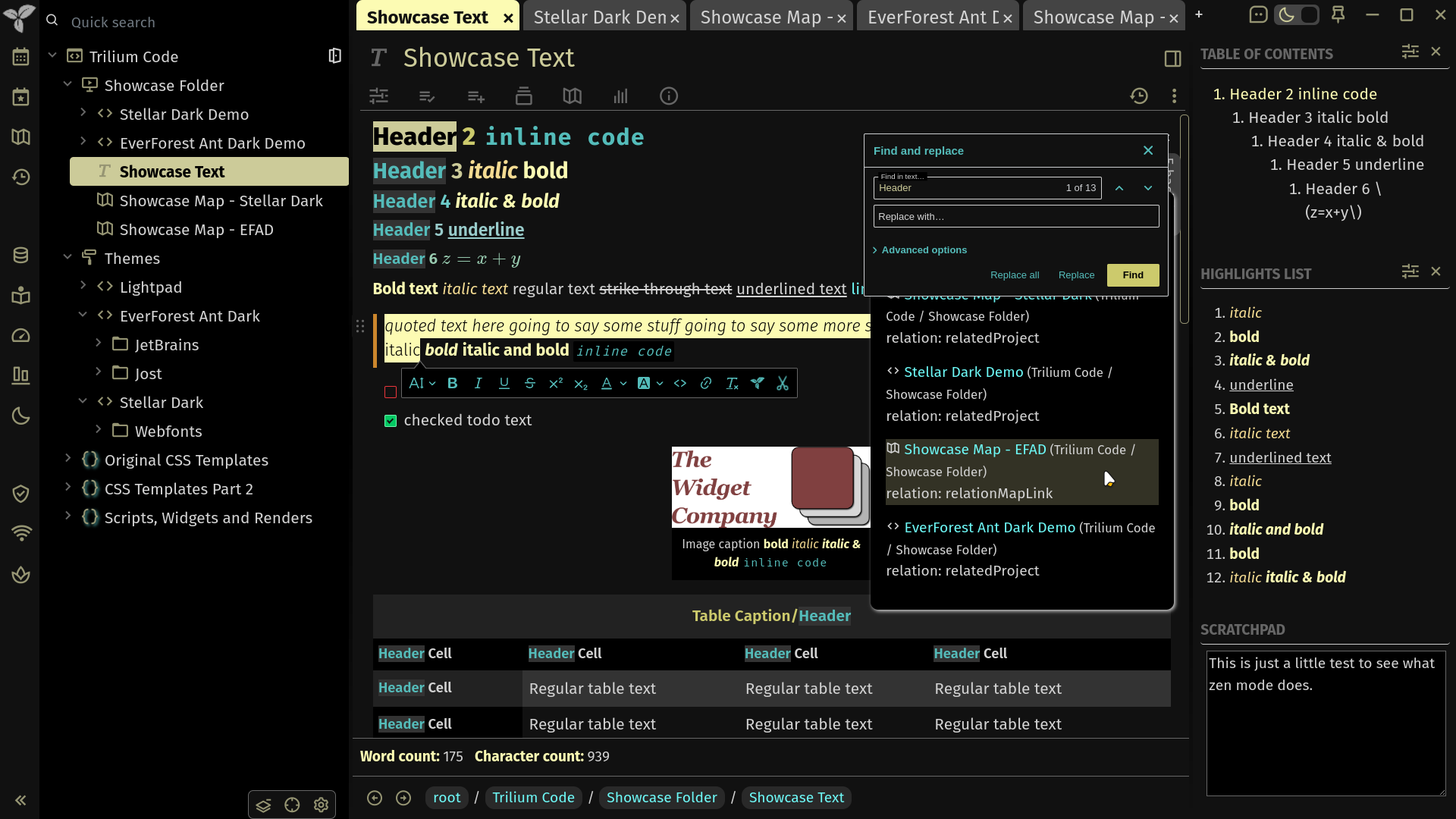
https://github.com/user-attachments/assets/60c5d157-fe57-48de-93a4-9f63479756f1
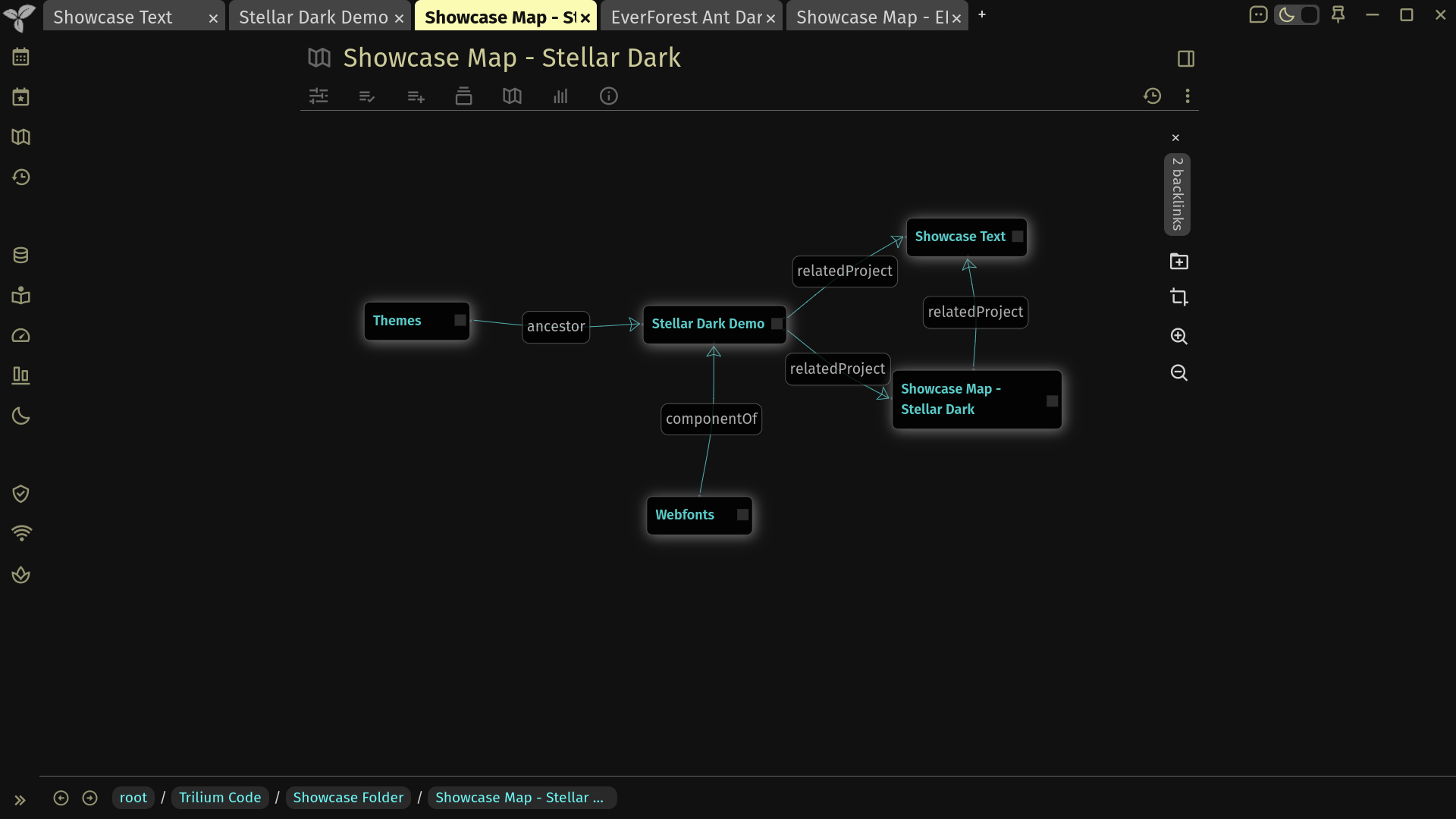
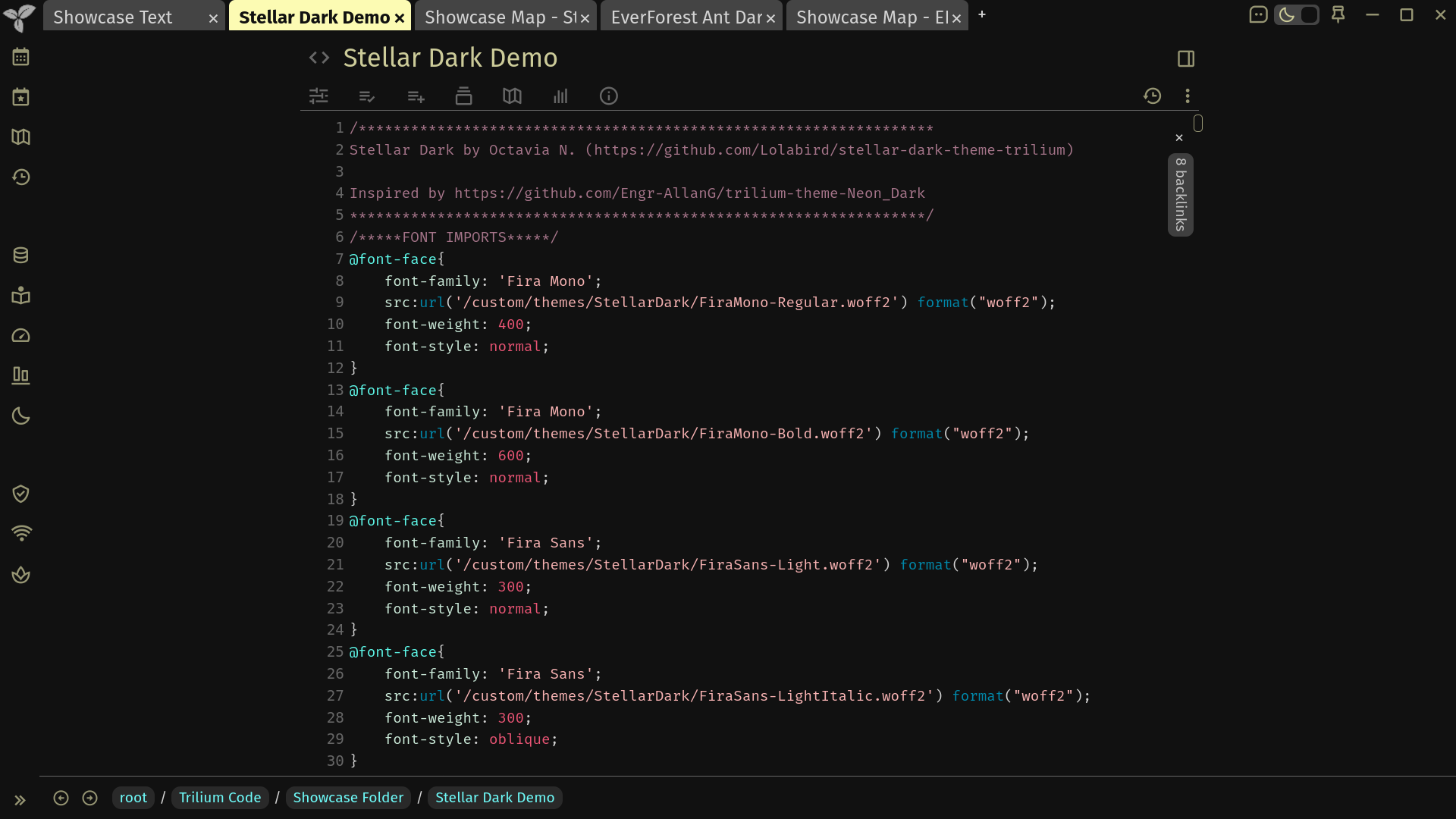
https://github.com/user-attachments/assets/a087b308-f532-4ff9-a620-444252ee71ce
Credits and Resources
Fonts
Addons Featured in the Screenshots and Videos
- Breadcrumbs
- Scratchpad
- Show Position in TOC
- Syntax Highlight
- Theme Switch
- Trilium Chat
- WordCount (Featured in the Demo Document)
- Zen Mode
Find more addons made by the Trilium community at Nriver's "Awesome Trilium" page, and check out my other theme EverForest Ant Dark while you're at it!!